
Using the WhatsApp Inbox
The Vobiz inbox provides a unified interface for managing all WhatsApp conversations across your channels. Send messages, view conversation history, and respond to customers in real-time.
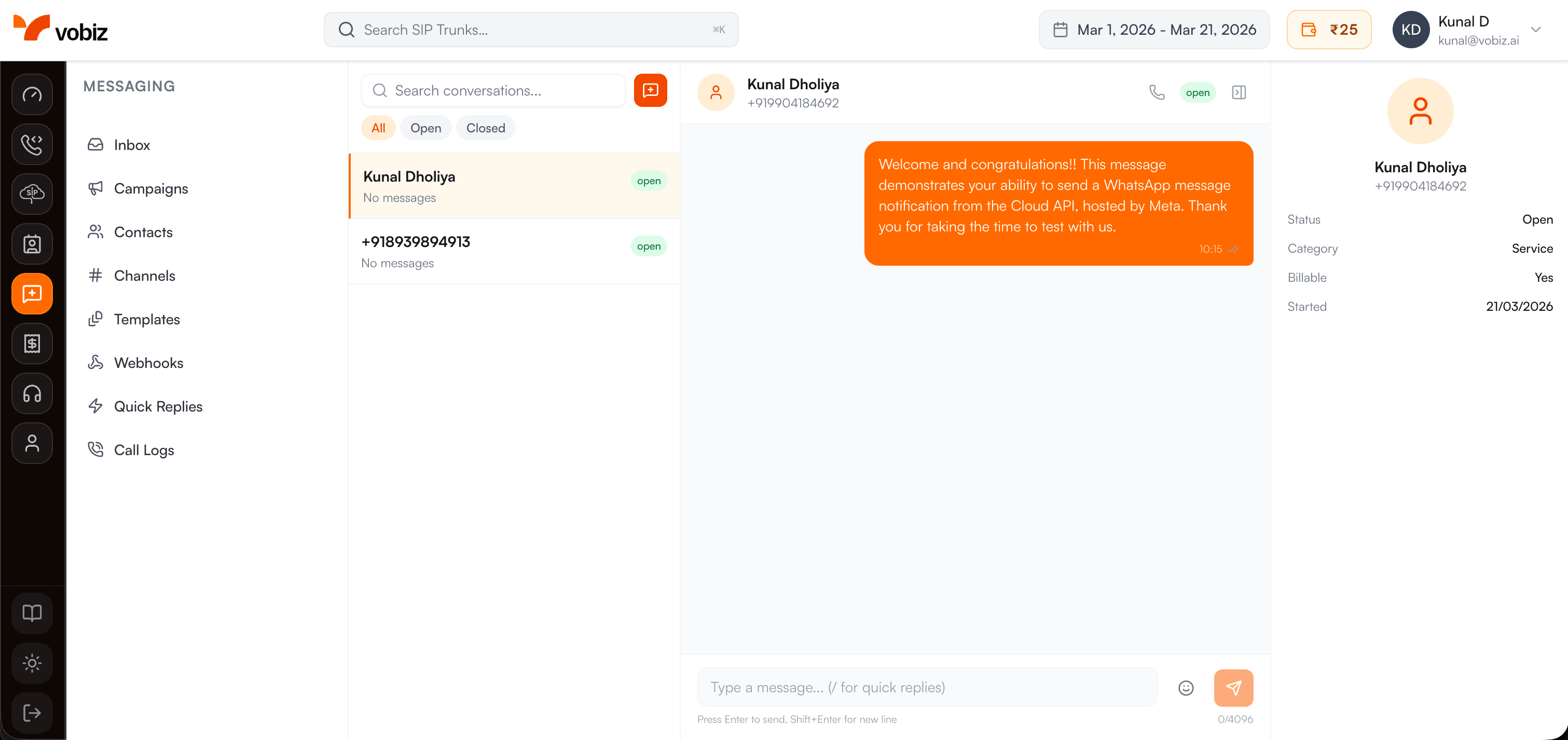
Inbox Interface
The inbox is divided into three main sections:
1. Channel Selector (Top)
Switch between different WhatsApp channels if you have multiple numbers connected.
2. Conversation List (Left Sidebar)
All conversations are listed chronologically with:
- • Customer name or phone number
- • Last message preview
- • Timestamp of last activity
- • Unread message badge
- • 24-hour window indicator
3. Message Thread (Center)
The selected conversation displays:
- • Complete message history
- • Sent/delivered/read status
- • Media previews
- • Message timestamps
- • Message composer at bottom
4. Contact Info (Right Sidebar)
Contact details panel showing:
- • Contact name and phone number
- • Tags and labels
- • Custom attributes
- • Conversation notes
- • Activity timeline
Sending Messages
Text Messages
- 1. Select a conversation from the list or click "New Message"
- 2. Type your message in the composer at the bottom
- 3. Press Enter or click the Send button
Tip: Use Shift+Enter to add a line break without sending the message.
Media Messages
- 1. Click the attachment icon () in the message composer
- 2. Select file type: Image, Video, Document, or Audio
- 3. Choose file from your device (or drag & drop)
- 4. Add optional caption
- 5. Click Send
File Limits: Images (5MB), Videos/Audio (16MB), Documents (100MB)
Template Messages
Send pre-approved templates when outside the 24-hour window:
- 1. Click the template icon () in the composer
- 2. Select a template from your library
- 3. Fill in variable placeholders if required
- 4. Preview the message
- 5. Click Send
Canned Responses
Insert saved responses for common questions:
- 1. Type
/in the message composer - 2. Browse or search your canned responses
- 3. Click to insert (or use arrow keys + Enter)
- 4. Edit if needed and send
Quick tip: Create shortcuts like "/hours" for business hours, "/track" for order tracking info, etc.
Receiving Messages
Real-time Updates
Incoming messages appear instantly in your inbox via WebSocket connection:
- • New messages appear with unread badge
- • Browser notification (if enabled)
- • Desktop notification sound
- • Conversation moves to top of list
Message Status Indicators
Queued
Message is waiting to be sent
Sent
Delivered to WhatsApp servers
Delivered
Received on customer's device
Read
Customer opened the message
Failed
Message delivery failed
24-Hour Window Indicator
A timer icon shows how much time remains in the 24-hour response window. When it expires, you'll see a "Template Required" indicator.
Conversation Management
Search & Filter
- • Search: Find conversations by contact name, phone number, or message content
- • Filter by status: All, Unread, Active (24h window), Expired
- • Filter by channel: View conversations from specific WhatsApp numbers
- • Filter by tags: Show conversations with specific labels
Conversation Actions
Available Actions:
- • Mark as read/unread
- • Add/remove tags
- • Add conversation notes
- • Assign to team member
- • Archive conversation
- • Delete conversation
Contact Management
From the conversation view, you can:
- • View and edit contact details
- • Add custom attributes (e.g., customer ID, order number)
- • Assign tags for organization
- • View conversation history
- • Add internal notes (not visible to customer)
Bulk Actions
Select multiple conversations to:
- • Mark all as read
- • Apply tags to multiple conversations
- • Archive multiple conversations
- • Export conversation data
Keyboard Shortcuts
Speed up your workflow with these keyboard shortcuts:
| Action | Shortcut |
|---|---|
| Send message | Enter |
| New line | Shift + Enter |
| Search conversations | Cmd/Ctrl + K |
| Next conversation | ↓ or J |
| Previous conversation | ↑ or K |
| Mark as read | E |
| Archive conversation | A |
| Insert canned response | / then type |
| Attach file | Cmd/Ctrl + U |
| Focus message input | C |