
WhatsApp Message Templates
Message templates are pre-approved message formats required to initiate conversations with customers outside the 24-hour messaging window. All templates must be approved by Meta before use.
Why Templates?
Meta requires template approval to prevent spam and ensure businesses only send relevant, valuable messages to customers. Templates can be used for notifications, customer support, marketing, and authentication messages.
Template Use Cases
- • Order confirmations and shipping updates
- • Appointment reminders and confirmations
- • Payment receipts and billing notifications
- • Account alerts and security notifications
- • Marketing promotions (with opt-in)
Template Categories
Meta categorizes templates based on their purpose:
UTILITY
Transactional messages providing important updates about ongoing transactions or customer accounts.
Examples:
- • Order status updates
- • Delivery notifications
- • Account changes
- • Payment confirmations
MARKETING
Promotional messages including offers, announcements, and product recommendations.
Examples:
- • New product launches
- • Seasonal promotions
- • Event invitations
- • Flash sales
Note: Marketing templates have stricter approval requirements and quality rating impacts.
AUTHENTICATION
One-time passcodes (OTP) for user authentication and verification.
Examples:
- • Login verification codes
- • Password reset codes
- • Two-factor authentication
Benefit: Authentication templates have expedited approval and special button types.
Creating Templates
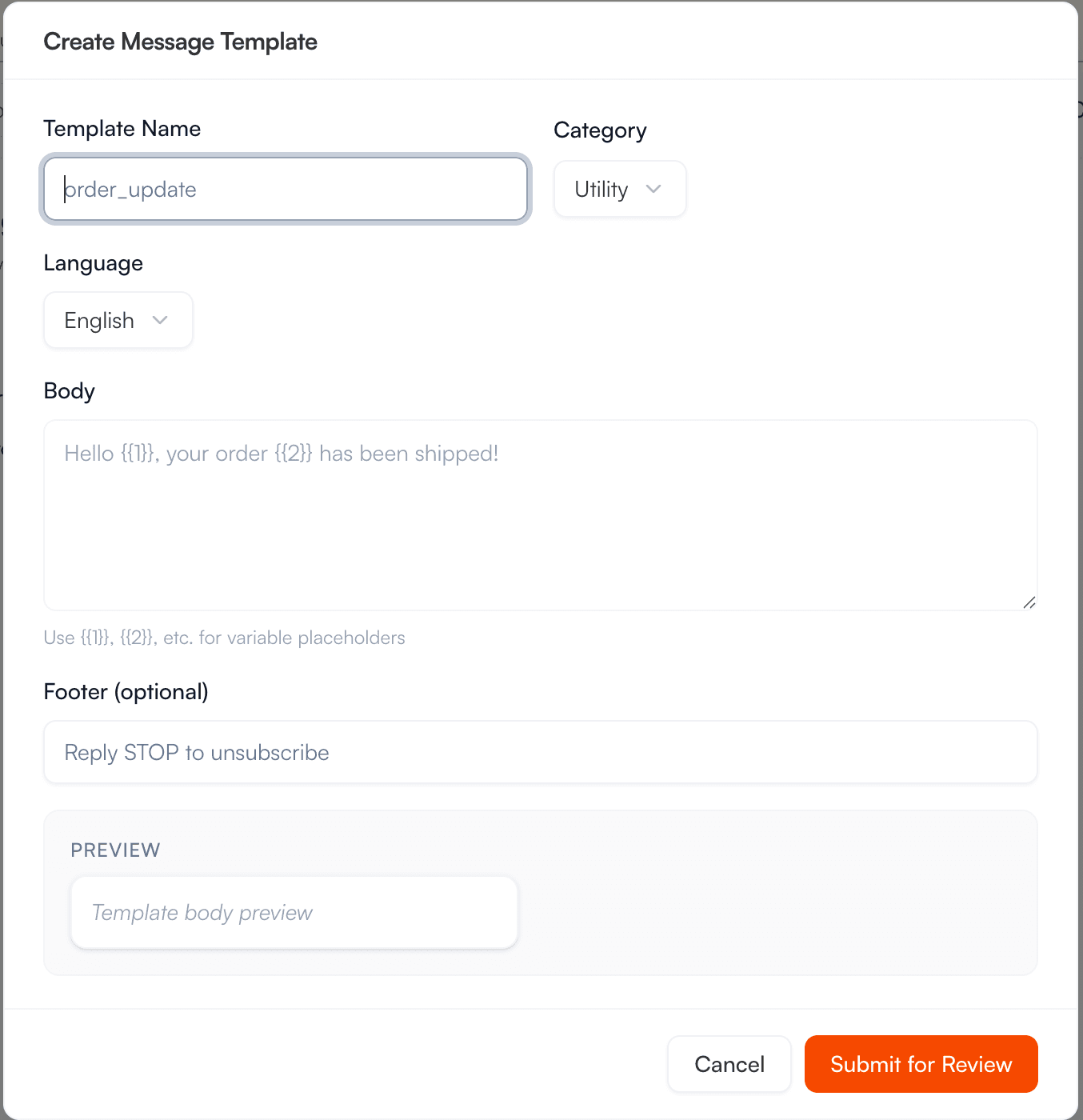
Via Vobiz Console
1. Navigate to Templates
Go to Messaging → Templates and click "Create Template"
2. Basic Information
- • Template name (lowercase, no spaces, use underscores)
- • Category (Utility, Marketing, or Authentication)
- • Language (select from 60+ supported languages)
3. Template Content
Compose your message with:
- • Header (optional): Text, image, video, or document
- • Body: Main message text (required, max 1,024 characters)
- • Footer (optional): Additional small text
- • Buttons (optional): Up to 3 quick reply or call-to-action buttons
4. Add Variables
Use
{{1}},{{2}}, etc. for dynamic content5. Submit for Approval
Review and submit to Meta for approval
Via API
curl -X POST https://api.vobiz.ai/v1/messaging/templates \
  -H "X-Auth-ID: YOUR_AUTH_ID" \
  -H "X-Auth-Token: YOUR_AUTH_TOKEN" \
  -H "Content-Type: application/json" \
  -d '{
    "name": "order_confirmation",
    "category": "UTILITY",
    "language": "en",
    "components": [
      {
        "type": "HEADER",
        "format": "TEXT",
        "text": "Order Confirmed!"
      },
      {
        "type": "BODY",
        "text": "Hi {{1}}, your order #{{2}} has been confirmed and will be delivered by {{3}}."
      },
      {
        "type": "FOOTER",
        "text": "Thank you for shopping with us!"
      },
      {
        "type": "BUTTONS",
        "buttons": [
          {
            "type": "URL",
            "text": "Track Order",
            "url": "https://example.com/track/{{1}}"
          }
        ]
      }
    ]
  }'
Template Components
Header (Optional)
Add visual impact with:
- • Text: Bold heading (60 characters max)
- • Image: JPEG or PNG (max 5MB)
- • Video: MP4 (max 16MB)
- • Document: PDF (max 100MB)
Body (Required)
Main message content:
- • Up to 1,024 characters
- • Supports variables
{{1}}through{{9}} - • Markdown formatting: *bold*, _italic_
- • Line breaks supported
Footer (Optional)
Small text at bottom:
- • Up to 60 characters
- • No variables allowed
- • Often used for disclaimers or opt-out info
Buttons (Optional)
Up to 3 buttons, choose from:
Quick Reply Buttons
User taps to send predefined text back
{ type: 'QUICK_REPLY', text: 'Yes, confirm' }URL Buttons
Opens a website (can include variables)
{ type: 'URL', text: 'View', url: 'https://...' }Phone Number Buttons
Initiates phone call
{ type: 'PHONE_NUMBER', text: 'Call Us', phone: '+1234567890' }Copy Code Button (Authentication only)
One-tap to copy OTP code
{ type: 'COPY_CODE', example: '123456' }Example Template Structure
Order Confirmed
Hi John, your order #12345 has been confirmed!
Estimated delivery: March 25, 2026
We'll send you updates as your order ships.
Reply STOP to unsubscribe
{
  "name": "order_confirmed",
  "category": "UTILITY",
  "language": "en",
  "components": [
    {
      "type": "HEADER",
      "format": "TEXT",
      "text": "Order Confirmed"
    },
    {
      "type": "BODY",
      "text": "Hi {{1}}, your order #{{2}} has been confirmed!\n\nEstimated delivery: {{3}}\n\nWe'll send you updates as your order ships."
    },
    {
      "type": "FOOTER",
      "text": "Reply STOP to unsubscribe"
    },
    {
      "type": "BUTTONS",
      "buttons": [
        {
          "type": "URL",
          "text": "Track Order",
          "url": "https://example.com/track/{{1}}"
        },
        {
          "type": "QUICK_REPLY",
          "text": "Contact Support"
        }
      ]
    }
  ]
}
Approval Process
All templates must be approved by Meta before use. The approval process typically takes a few hours to 24 hours.
Approval Timeline
Submitted
Template sent to Meta for review
Pending (1-24 hours)
Meta reviews content for policy compliance
Approved
Template ready to use in campaigns and messages
Common Rejection Reasons
- • Spelling/grammar errors: Templates must be professionally written
- • Unclear purpose: Message intent must be obvious
- • Misleading content: No deceptive or false information
- • Poor variable usage: Variables must make sense in context
- • Policy violations: Content violates WhatsApp Business Policy
- • Marketing as utility: Don't categorize promotional content as utility
Resubmitting Rejected Templates
If your template is rejected, review the rejection reason, make necessary corrections, and resubmit. You can edit and resubmit templates unlimited times.
Using Templates
Send Template via Console
- 1. Open a conversation in the inbox
- 2. Click the template icon in the message composer
- 3. Select approved template from the list
- 4. Fill in variable values
- 5. Preview and send
Send Template via API
curl -X POST https://api.vobiz.ai/v1/messaging/messages \
  -H "X-Auth-ID: YOUR_AUTH_ID" \
  -H "X-Auth-Token: YOUR_AUTH_TOKEN" \
  -H "Content-Type: application/json" \
  -d '{
    "channel_id": "ch_xyz789",
    "to": "+1234567890",
    "type": "template",
    "template": {
      "name": "order_confirmed",
      "language": {
        "code": "en"
      },
      "components": [
        {
          "type": "body",
          "parameters": [
            {
              "type": "text",
              "text": "John"
            },
            {
              "type": "text",
              "text": "12345"
            },
            {
              "type": "text",
              "text": "March 25, 2026"
            }
          ]
        },
        {
          "type": "button",
          "sub_type": "url",
          "index": 0,
          "parameters": [
            {
              "type": "text",
              "text": "12345"
            }
          ]
        }
      ]
    }
  }'
Template Best Practices
Use Clear, Concise Language
Write professionally with proper grammar. Avoid abbreviations, slang, or overly casual language.
Provide Context with Variables
Include sample values when submitting to show Meta how variables will be used. Example: "Your order {{1}}" with sample "Your order #12345"
Choose the Right Category
Utility for transactional, Marketing for promotional. Miscategorization leads to rejection.
Add Value with Every Message
Templates should provide clear value: updates, important information, or requested content.
️ Include Opt-out Information
For marketing templates, include clear opt-out instructions in the footer.
️ Test Before Mass Sending
Send test messages to verify variables populate correctly before using in campaigns.