
What you'll build:
An outbound calling system with real-time AI conversations powered by OpenAI (STT → LLM → TTS), automatic call recording, and bidirectional audio streaming.
Overview
This integration combines Vobiz telephony infrastructure with Pipecat voice agent framework to create intelligent AI-powered phone calls.
Call flow:
Features
- •AI Voice Conversations
Natural conversations powered by OpenAI GPT + TTS/STT
- •Outbound Calling
Trigger calls via REST API from anywhere
- •Automatic Recording
All conversations automatically recorded and saved
- •Real-time Streaming
Bidirectional audio via WebSockets
Prerequisites
- ✓Vobiz Account with Auth ID and Auth Token → Sign up
- ✓OpenAI API Key for LLM, STT, and TTS → Get API key
- ✓Python 3.10+ installed on your system
- ✓ngrok for local development → Download ngrok
Installation
Step 1: Clone the Repository
git clone https://github.com/vobiz-ai/Vobiz-X-Pipecat
cd Vobiz-X-Pipecat
Step 2: Install Dependencies
pip install -r requirements.txtNote: This will install FastAPI, Pipecat, OpenAI SDK, and other required packages.
Step 3: Configure Environment
Create a .env file in the project root:
OPENAI_API_KEY=sk-...
VOBIZ_AUTH_ID=MA_XXXXXXXX
VOBIZ_AUTH_TOKEN=your-token-here
PUBLIC_URL=https://your-ngrok-url.ngrok-free.app
Where to find these values:
OPENAI_API_KEY- OpenAI Platform → API KeysVOBIZ_AUTH_ID- Vobiz Console → Account SettingsVOBIZ_AUTH_TOKEN- Vobiz Console → Account SettingsPUBLIC_URL- Your ngrok URL (set in Step 2 of Usage)
Usage
Step 1: Start the Server
python server.pyServer will run on http://0.0.0.0:7860
Step 2: Start ngrok
In a new terminal, expose your local server:
ngrok http 7860Copy the ngrok URL from the output (e.g., https://abc123.ngrok-free.app)
Important: Update PUBLIC_URL in your .env file with this ngrok URL, then restart the server.
Step 3: Make a Call
Initiate an AI-powered call using the Vobiz API:
curl -X POST https://api.vobiz.ai/api/v1/Account/YOUR_AUTH_ID/Call/ \
  -H "X-Auth-ID: YOUR_AUTH_ID" \
  -H "X-Auth-Token: YOUR_AUTH_TOKEN" \
  -H "Content-Type: application/json" \
  -d '{
    "from": "+918011223344",
    "to": "+919148223344",
    "answer_url": "https://your-ngrok-url.ngrok-free.app/answer",
    "answer_method": "POST"
  }'
What happens next:
- Phone rings at the "to" number
- When answered, Vobiz requests XML from your server
- Server returns WebSocket URL
- Audio streams to Pipecat bot
- AI assistant speaks and listens
- Conversation is automatically recorded
Receiving Inbound Calls
Configure your Vobiz number to handle incoming calls with your Pipecat agent.
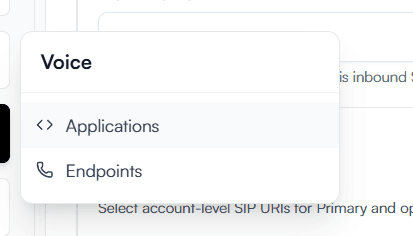
Step 1: Access Applications
Log in to the Vobiz Console and navigate to the Applications section in the sidebar.
Step 2: Create Application
Click "Create New Application" and give it a name (e.g., "Pipecat Agent").
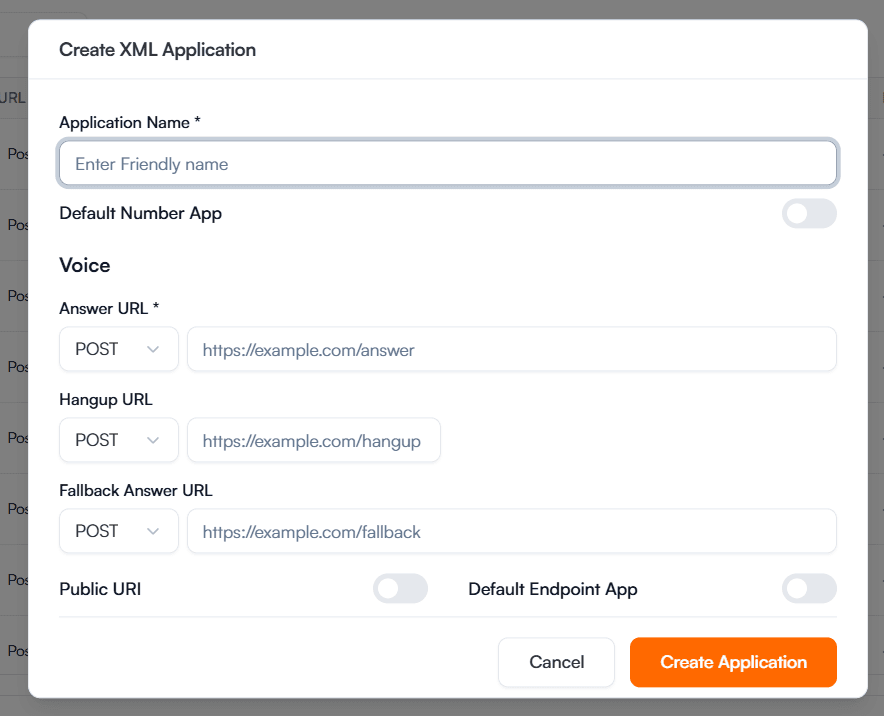
Step 3: Configure URLs
Set the Answer URL to your ngrok URL (e.g., https://.../answer) and select POST method. You can use the same URL for Hangup or leave it blank.
Step 4: Attach Number
Go to "Phone Numbers", select your number, and assign it to the application you just created.

Success: Calls to your Vobiz number will now be handled by your local Pipecat server!
Quick Reference
Server Endpoints
| Endpoint | Method | Description |
|---|---|---|
| /answer | POST | Called by Vobiz when call is answered. Returns XML with WebSocket URL. |
| /ws | WebSocket | WebSocket endpoint for bidirectional audio streaming. |
| /recording-finished | POST | Called by Vobiz when recording stops. Logs recording details. |
| /recording-ready | POST | Called by Vobiz when recording file is ready. Auto-downloads the MP3. |
Customizing the Bot
Edit bot.py to customize your AI assistant:
messages = [
      {
          "role": "system",
          "content": "You are a friendly customer service agent..."
      },
]tts = OpenAITTSService(
api_key=os.getenv("OPENAI_API_KEY"),
voice="nova", # Options: alloy, echo, fable, onyx, nova, shimmer
)Resources
Vobiz Documentation
External Resources
Integration complete!
You can now make AI-powered phone calls with Vobiz and Pipecat.
Next Steps:
- Customize your AI assistant's personality in bot.py
- Deploy to production (AWS/GCP/Heroku) instead of ngrok
- Add custom business logic and integrations