
Prefer using API/CLI?
Check out the API-Based Setup Guide for curl commands and programmatic integration.
Overview
This guide shows how to integrate Retell AI with Vobiz using the dashboard to enable outbound calling - your AI agents can call any phone number with natural conversations.
Call flow:
Prerequisites
Before starting:
- →Retell AI Account → Sign up
- →Vobiz Account with active balance → Create account
- →Retell AI Agent created → Create in dashboard
- →Phone number from Vobiz (for caller ID)
Step 1: Open Phone Numbers Section
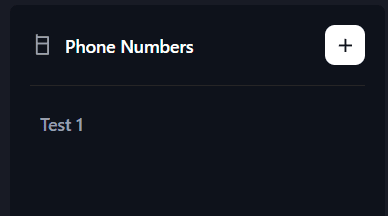
- Log in to Retell Dashboard
- Navigate to Phone Numbers in the sidebar
- Click the "+" button to add a new number
Step 2: Select SIP Trunking
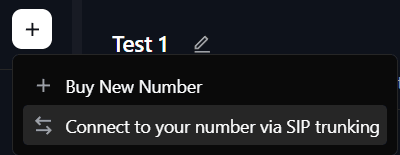
Select "Connect to your number via SIP trunking"
This option allows you to use your own Vobiz phone number and SIP infrastructure instead of buying a number from Retell.
Step 3: Configure SIP Trunk
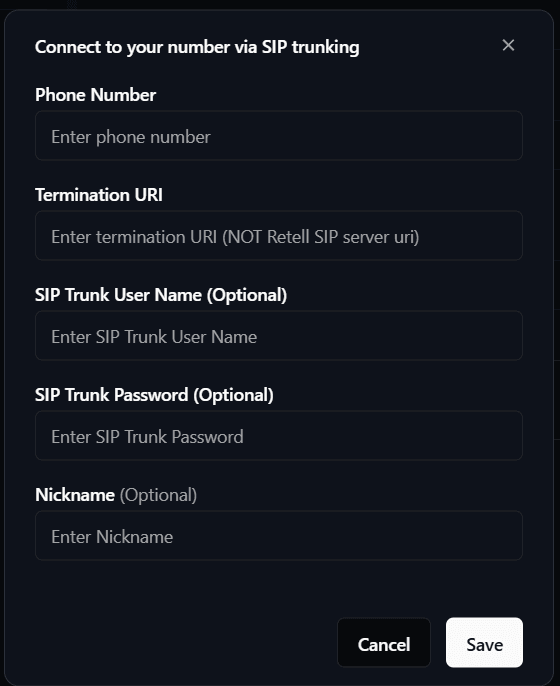
Required Fields:
Phone Number
Your Vobiz phone number in E.164 format:
+1234567890Include country code with + prefix
Termination URI
Your Vobiz SIP domain:
abc123.sip.vobiz.ai⚠️ Do NOT include sip: prefix
SIP Trunk User Name (Optional)
Your Vobiz trunk username:
your_usernameSIP Trunk Password (Optional)
Your Vobiz trunk password:
your_passwordNickname (Optional)
Friendly name for this number (e.g., "Vobiz Main Line")
Where to get Vobiz credentials:
- Via Console: Vobiz Console → Trunks → Your Trunk
- Via API: See SIP Trunks Documentation
Click Save to complete the configuration.
Your phone number is now configured and ready for outbound calling!
Step 4: Make a Batch Call
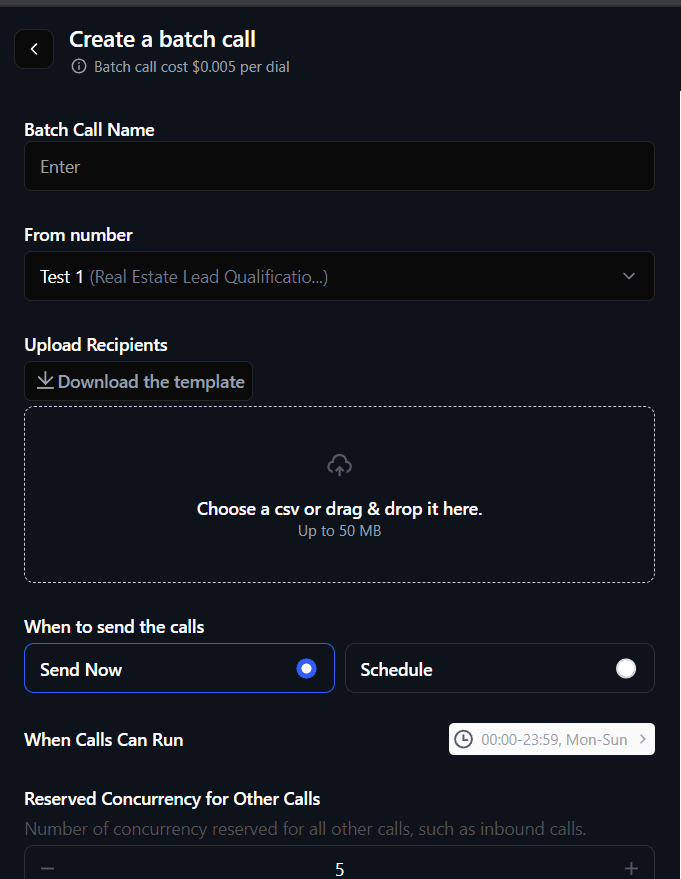
- Click on your configured phone number
- Select "Create a batch call"
- Fill in the details:
- Batch Call Name: Name for this campaign (e.g., "Customer Outreach")
- From number: Select your configured Vobiz number
- Upload Recipients: Upload CSV file with phone numbers
- When to send: Choose "Send Now" or "Schedule" for later
- Click Send or Schedule
Expected Behavior:
- Calls initiate to all numbers in CSV
- AI agent speaks when answered
- View call logs in Retell Dashboard
CSV Format:
For CSV file format and requirements, see Retell Batch Calling Docs
Dashboard Setup Complete!
Your Retell AI agent can now make outbound calls through Vobiz SIP infrastructure. Perfect for testing and manual campaigns!
Troubleshooting
"Phone number not found"
Problem: Phone number not configured in Retell.
Fix:
- Verify number format is E.164 (
+countrycode + number) - Re-configure the phone number in Step 3
- Check number exists in Vobiz Console
Call fails immediately
Problem: SIP authentication or configuration issue.
Fix:
- Verify Vobiz username/password at Vobiz Console
- Must be exact Vobiz domain (e.g.,
abc123.sip.vobiz.ai) - Do NOT include
sip:prefix - Try different transport type (TCP vs UDP) in trunk config
Agent doesn't speak
Problem: Agent not configured or not published.
Fix:
- Ensure agent is published in Retell Dashboard → Agents
- Check agent has voice configured
- Verify agent ID matches in phone number config
Need more detailed troubleshooting?
Check the complete troubleshooting guide in the API documentation for more error scenarios and solutions.
Next Steps
- →Customize your agent
Configure voice, personality, and prompts in Retell Dashboard → Agents
- →View call analytics
Monitor call logs and transcripts in Retell Dashboard → Calls
- →Automate with API
Learn to trigger calls programmatically in the API Setup Guide
- →Monitor usage
Track Vobiz balance and call records