
Quick Start Guide
Get up and running with WhatsApp Business in under 5 minutes. This guide will walk you through connecting your first channel and sending messages via both the console and API.
⏱️ Time to Complete
5 minutes if you have all prerequisites ready.
What You'll Learn
- How to connect a WhatsApp Business channel
- How to send messages via the console
- How to send messages via the API
- How to receive and respond to messages
Step 1Connect Your WhatsApp Channel
First, let's connect your WhatsApp Business number to Vobiz. We'll use the BYON (Bring Your Own Number) method for this guide.
1. Navigate to Channels
a. Log in to the Vobiz Console
b. Go to Messaging → Channels in the left sidebar
c. Click the "Connect Channel" button
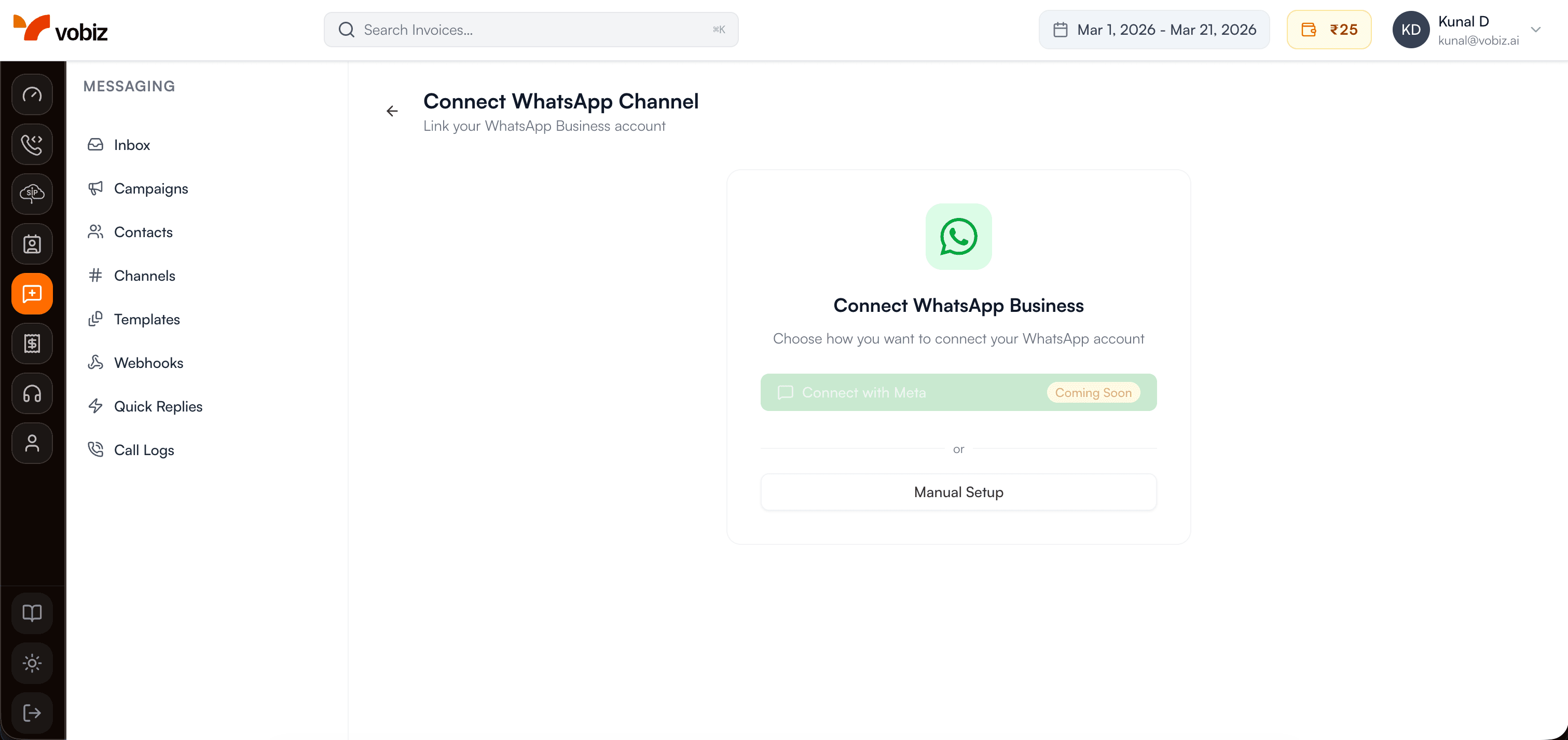
2. Choose Connection Mode
Select "Bring Your Own Number (BYON)" from the three options
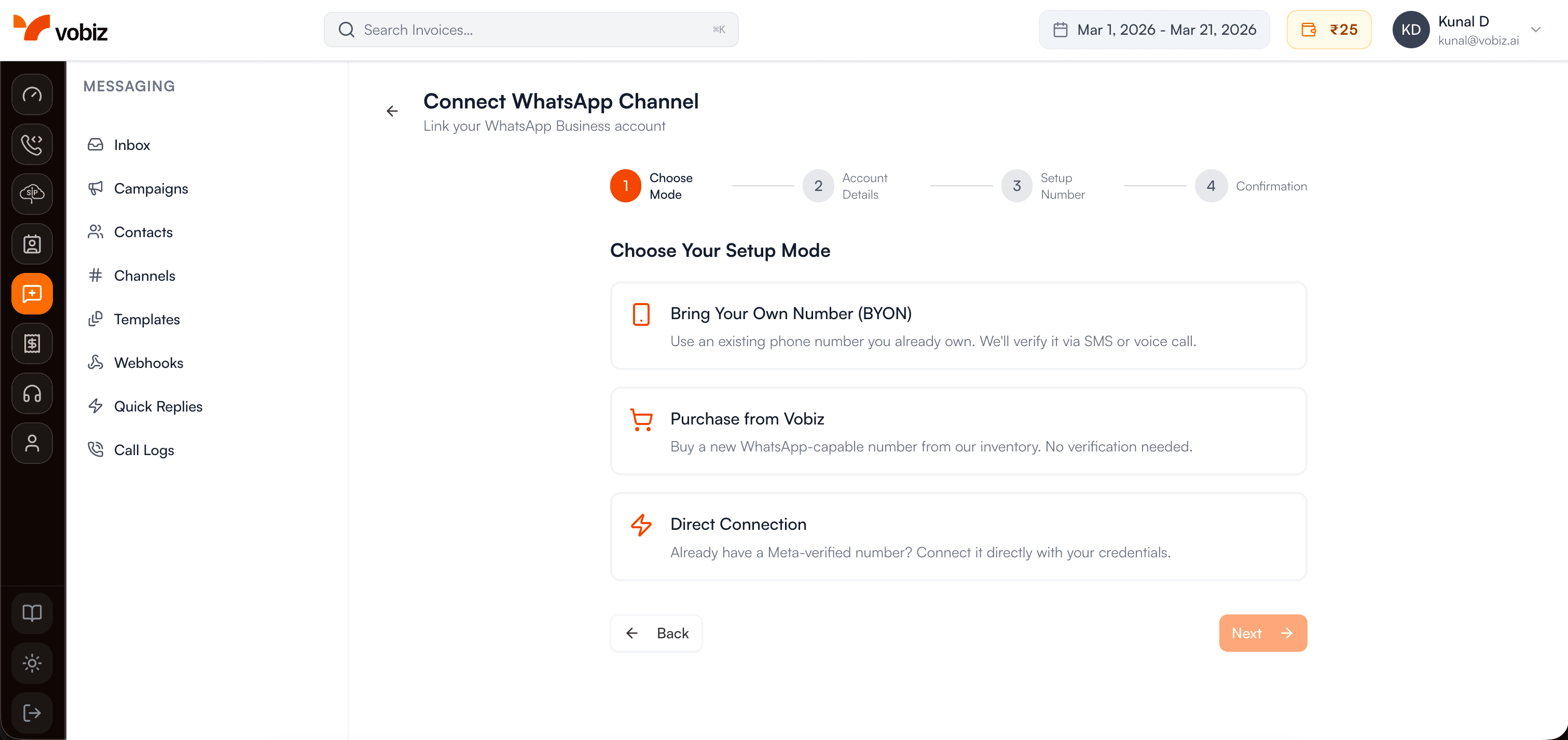
3. Enter Your Credentials
Fill in the following information from your Meta Business Manager:
- WABA ID: Your WhatsApp Business Account ID (found in Meta Business Manager)
- Phone Number ID: The ID of your phone number (from WhatsApp Manager)
- Access Token: System user access token with WhatsApp permissions
- Display Name: Your business name as it will appear to customers
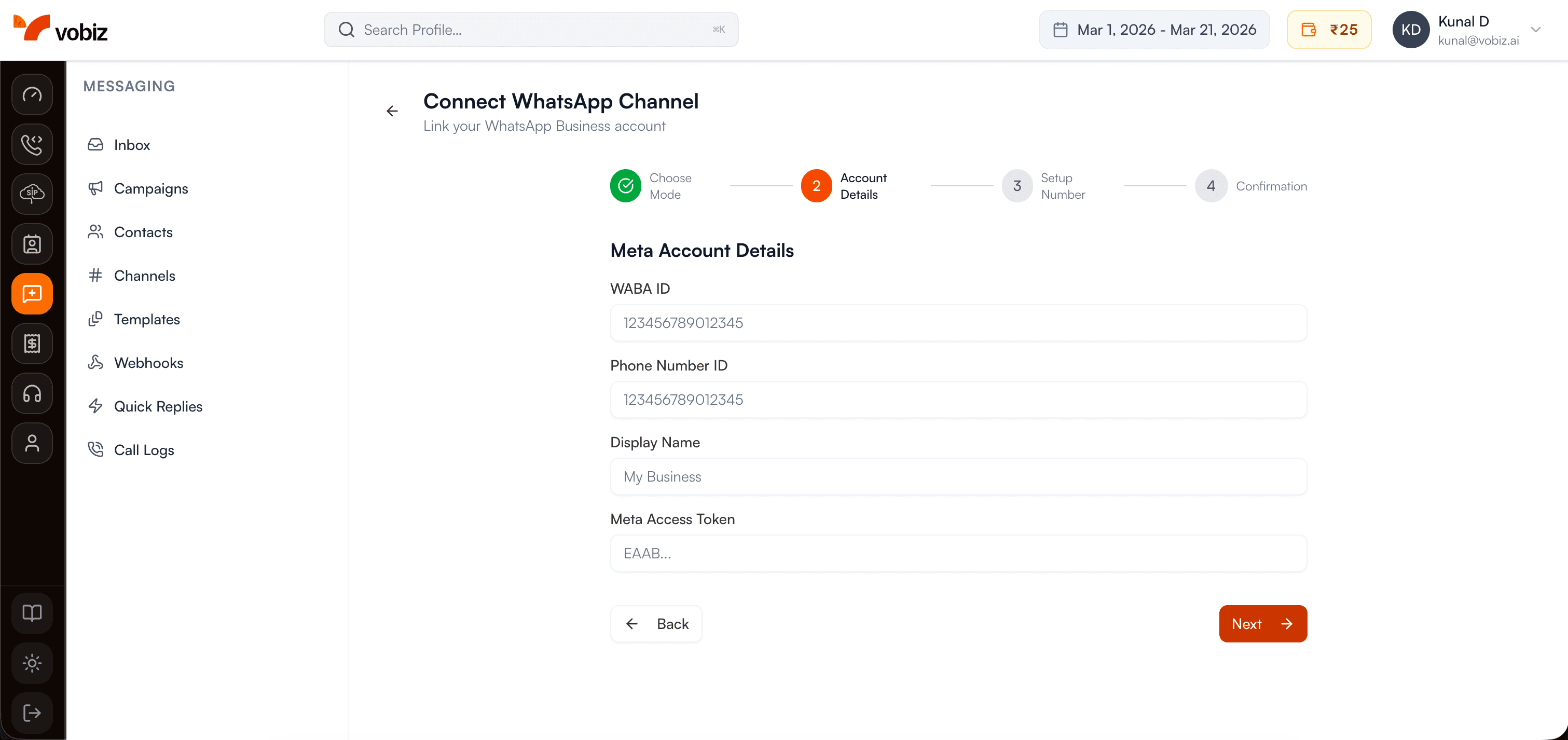
Need help finding these? Check the detailed BYON guide for step-by-step instructions with screenshots.
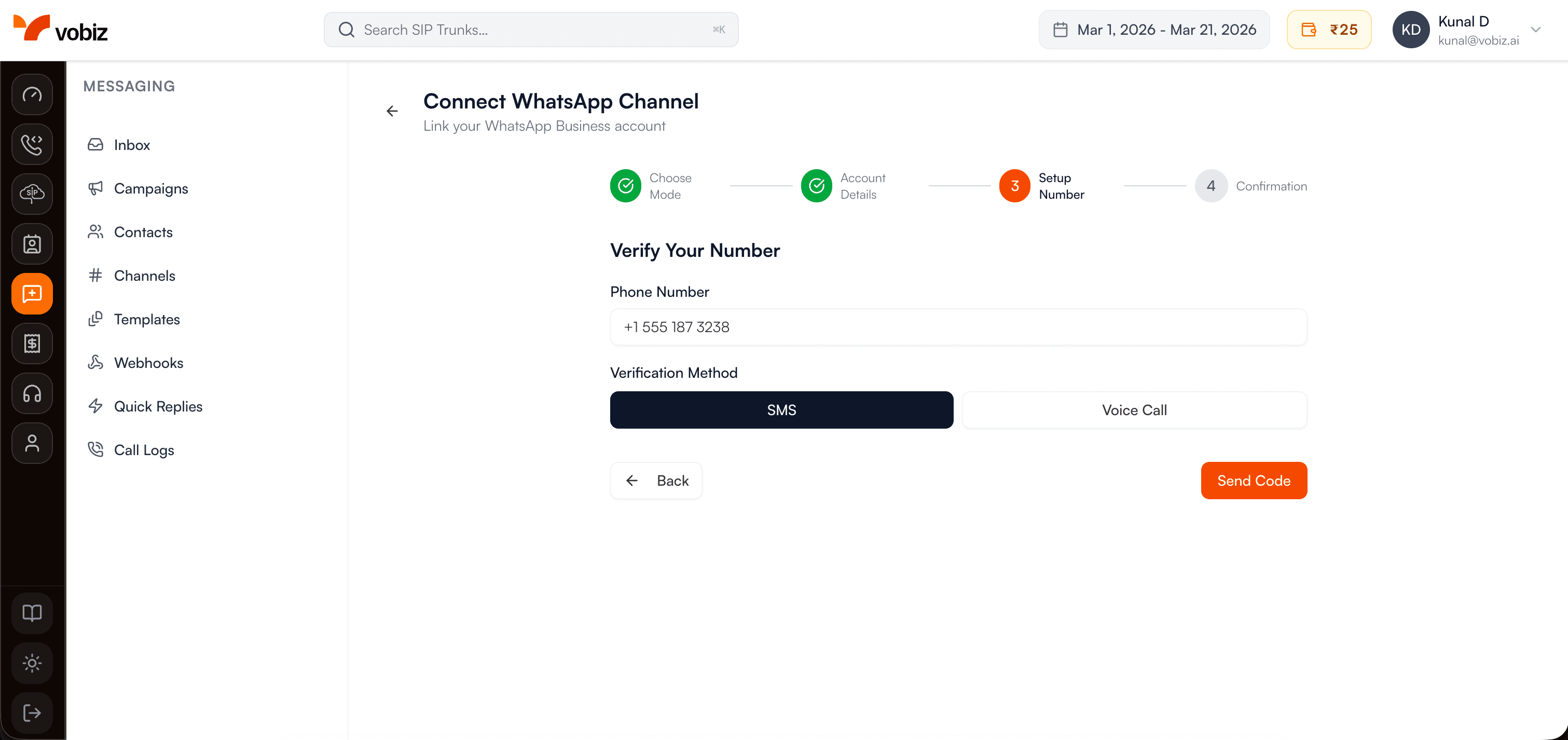
4. Verify Your Phone Number
After submitting your credentials, you'll need to verify your phone number via OTP:
- Choose verification method: SMS or Voice call
- Enter the 6-digit code you receive
- Click "Verify"
5. Success!
Once verified, your channel will be connected and appear in your channels list.
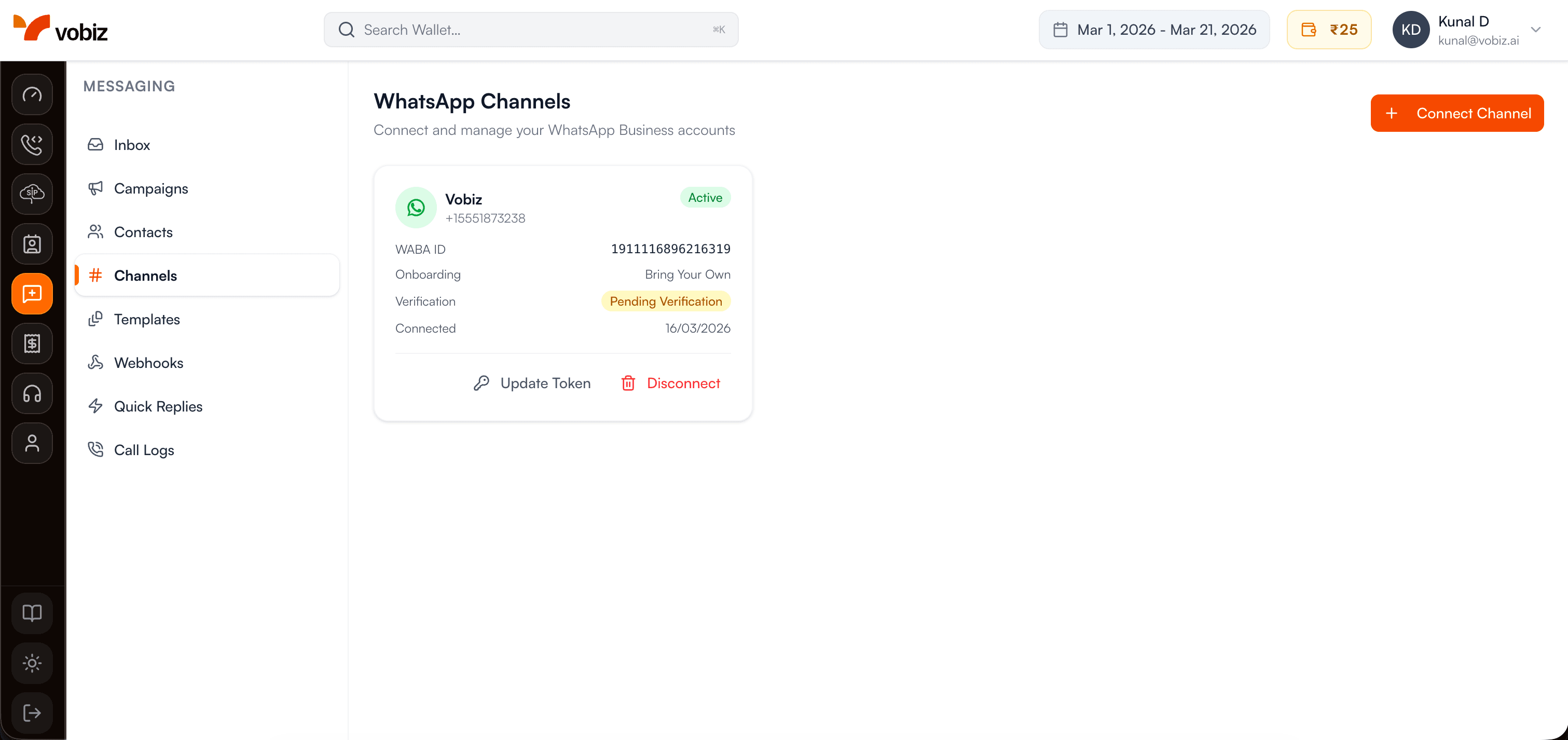
Checkpoint
You should now see your WhatsApp channel in the Channels list with a "Connected" status. The channel card will show your business name, phone number, and connection details.
Step 2Send Your First Message
Now let's send a message! We'll show you two ways: using the Vobiz console (no code) and using the API (for developers).
Option A: Send via Console (No Code)
1. Go to Messaging → Inbox
2. Click the "New Message" button or select an existing conversation
3. Enter the recipient's phone number in E.164 format (e.g., +1234567890)
4. Type your message in the text box
5. Click Send or press Enter
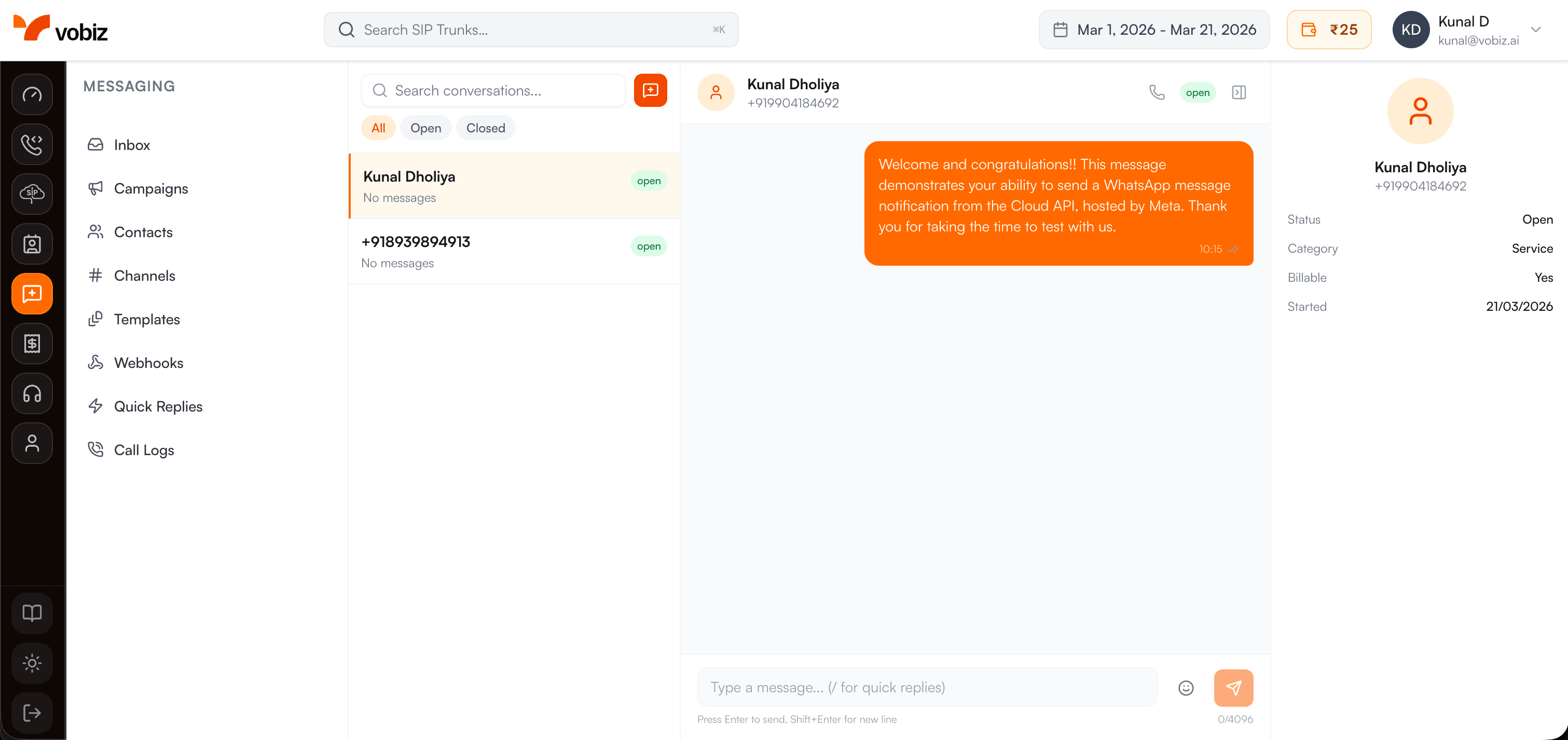
Tip: You can also send images, videos, documents, and other media by clicking the attachment icon.
Option B: Send via API (For Developers)
Use the Send Message API to programmatically send WhatsApp messages from your application:
curl -X POST https://api.vobiz.ai/v1/messaging/messages \
  -H "X-Auth-ID: YOUR_AUTH_ID" \
  -H "X-Auth-Token: YOUR_AUTH_TOKEN" \
  -H "Content-Type: application/json" \
  -d '{
    "channel_id": "your-channel-uuid",
    "to": "+1234567890",
    "type": "text",
    "text": {
      "body": "Hello! This is my first WhatsApp message from Vobiz!"
    }
  }'
Replace these values:
- •
YOUR_AUTH_ID- Your Vobiz Auth ID (from console) - •
YOUR_AUTH_TOKEN- Your Vobiz Auth Token - •
your-channel-uuid- The UUID of your connected channel - •
+1234567890- Recipient's phone number in E.164 format
Example Response
{
  "id": "msg_abc123def456",
  "channel_id": "ch_xyz789",
  "conversation_id": "conv_123abc",
  "to": "+1234567890",
  "type": "text",
  "status": "sent",
  "timestamp": "2026-03-19T10:30:00Z",
  "text": {
    "body": "Hello! This is my first WhatsApp message from Vobiz!"
  }
}
Success: If you get a 200 response, your message was sent successfully! Check your WhatsApp to see it delivered.
️ Important: 24-Hour Window
You can only send template messages to users who haven't messaged you in the last 24 hours. For the first message, make sure you're messaging a number that has initiated contact, or use a pre-approved template.
Step 3Receive and Respond to Messages
When customers message your WhatsApp number, you'll see them in the Vobiz inbox in real-time.
Via Console
- 1. Go to Messaging → Inbox
- 2. Incoming messages appear in the conversation list on the left
- 3. Click a conversation to view the message thread
- 4. Reply directly in the text box at the bottom
Real-time updates: The inbox updates in real-time via WebSocket, so you'll see new messages instantly without refreshing.
Step 4Set Up Webhooks (Optional)
For developers: Set up webhooks to receive real-time notifications when messages arrive, get delivered, or are read.
Quick Webhook Setup
- 1. Go to Messaging → Webhooks
- 2. Click "Create Webhook"
- 3. Enter your webhook URL (must be publicly accessible and HTTPS)
- 4. Select the events you want to receive (e.g.,
message.received,message.delivered) - 5. Copy the signing secret to verify webhook payloads
- 6. Click "Save"
{
  "type": "message.received",
  "timestamp": "2026-03-19T10:35:00Z",
  "channel_id": "ch_xyz789",
  "conversation_id": "conv_123abc",
  "message": {
    "id": "msg_incoming123",
    "from": "+1234567890",
    "type": "text",
    "text": {
      "body": "Hi, I need help with my order"
    },
    "timestamp": "2026-03-19T10:35:00Z"
  }
}
Learn more: Check out the Webhooks documentation for detailed guides on implementing webhook handlers, verifying signatures, and handling different event types.
Congratulations!
You've successfully connected your WhatsApp channel and sent your first message. Here's what to explore next: